
To allow Wi5stars to send and receive SMS and you do not want to use an external SMS gateway, you have to connect the GSM modem, supplied with Wi5stars appliance, into one of the two USB ports on the back of the appliance.
Before connecting the GSM modem to the Wi5stars hardware, you must insert a SIM card, active and traffic enabled in the modem.
Important! Verify that the SIM is not PIN protected.
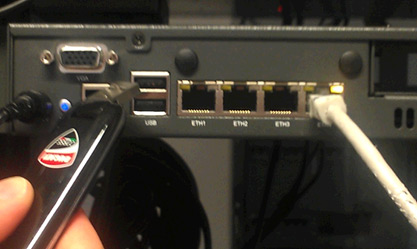
The lower USB port is the primary USB port (in general for the main modem), while the upper one is the secondary USB port (in general for the additional modem).
After having logged to the web administration interface, click on the “Admin” tab and select “ System Settings “.
In the field “Primary modem type”, the type of connected modem will be recognised and automatically displayed. Fill in the respective fields “Message centre number” and “Number”.
Click on the “Save” button on the top right corner and then the “Reboot services” button to complete the modem configuration.
You can test the modem functioning by clicking “Utility Functions” in the toolbar on the top left, and then sending a test SMS from the test section “Send a test SMS”