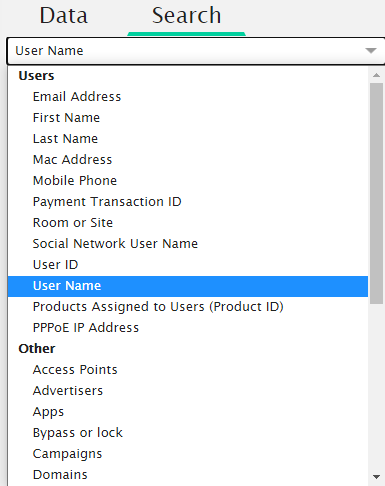
The “search” tab allows you to search the data based on the type of search you have selected.
It contains a field where you can enter the type of search, a field where you can enter the ending of characters to search, the button to start the search and a list which reports all the results obtained. The search is performed by pressing enter after having edited a text.
The data types you can search are divided in two groups: “Users” and “Other”. The “Users” group lists all the types of search that concern end users, while on “Other” the types of search that concern system features included in the backend.
In “Users” group the available search types are: Email Address; First Name; Last Name; MAC-address; Mobile Phone; Payment Transaction Number, Room or Pitch Number; Social Network User Name; User ID; User Name; Products assigned to user (Product ID); PPPoE IP Address.
In “Other” group the available search types are: Access Points; Virtual Access Points; Advertiser; App; Bypass or lock; Campaigns; Domains; Gateway; Virtual Gateway; IP Gateways Addresses; Images; Managers; Printers; Products; Products Policies; Surveys, Quiz or Tests; System Users; Templates; Vouchers; Zone of Floor.
It is also available the search type “Search Everywhere” that allows you to search on all types of data. To avoid compromising system performance, in presence of many data, generic search is only available for “Admin” users.
By clicking on search results, you can see the default page linked to the data found. By clicking on the context properties button the context dropdown menu of the data will be visualised.