
Managing diverse user access across various locations and services often requires costly hardware.
To simplify this, you can benefit from multiple login forms within the same landing page, enabling centralised user management across multiple domains and WiFi plans — all without additional infrastructure.
Determine the Manager who needs multi-login forms.
Create more than one domain to offer different login methods, keeping the guests’ database separated
Under one of the domains, add a gateway to serve as the primary gateway. While editing the gateway settings, specify the Authentication Method Title — the name that will be displayed to users during authentication.
From the dropdown menu of the primary gateway you created, click Add Virtual Gateway, as shown in the video.
In the context menu, expand the General Data section.
In the Virtual Gateway Type field, select With multiple authentication methods.
Enter a name in the Authentication Method Title field. This title will be displayed when guests authenticate.
If multilingual support is enabled, be sure to provide the title in all supported languages.
In the Related Domain field, select the domain to associate with this virtual gateway.
Click the Save button at the top right corner of the page.
The available networks will appear on the Welcome Portal for selection and in the App Bar
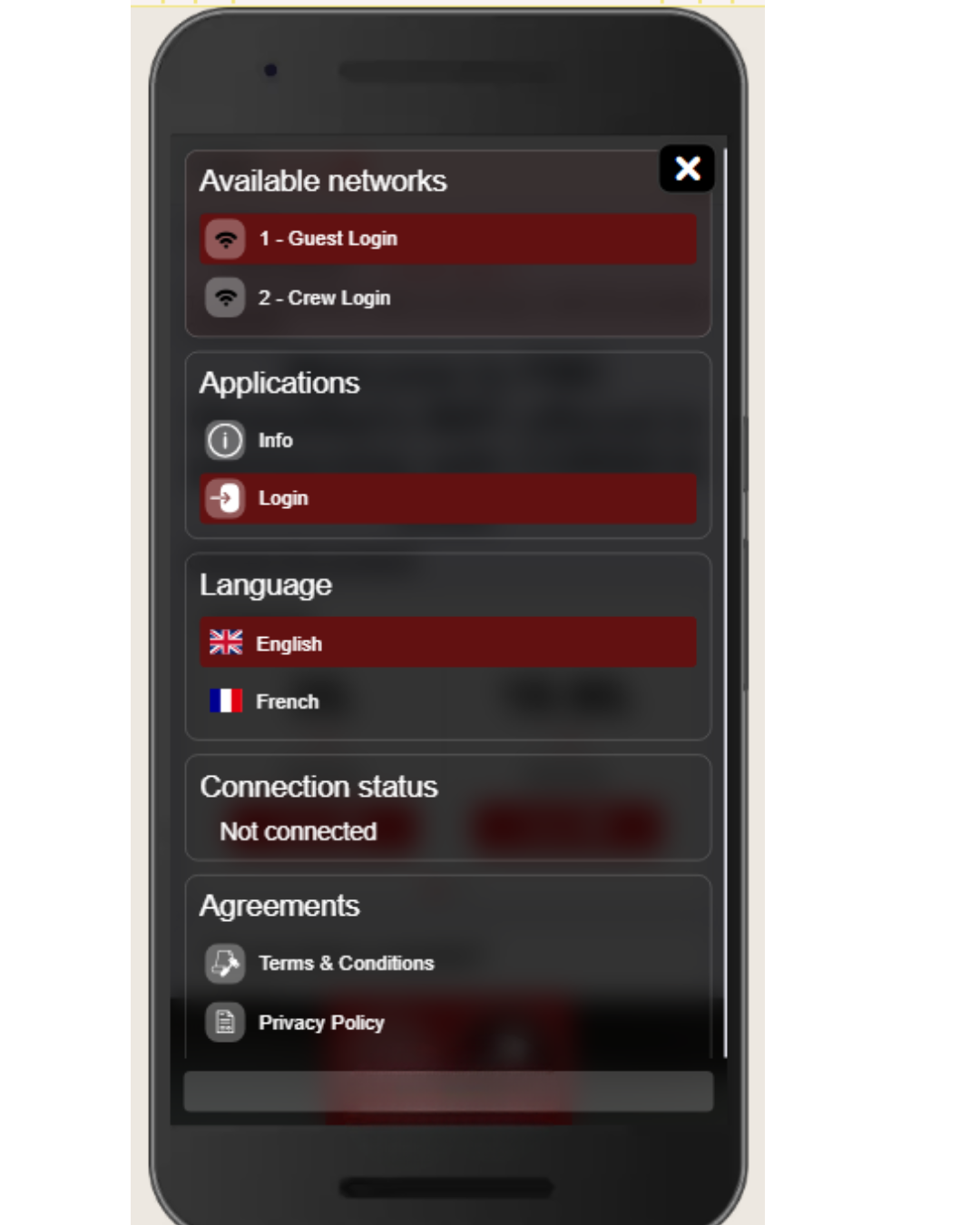
In case you’d prefer this result, you need to go to the template you are using, then expand Welcome Portal > Definitions
In the Displaying Other Available Networks fields, select Only on sidebar